“Hidden” AWSOM Plugin Features: Creating default cache and gallery folders
The AWSOM Pixgallery image gallery plugin for WordPress is designed to be an easy way for users to get a gallery of their images loaded into their site with a minimum of work and time. One of it’s “hidden” features is the ability to go in and create default folders on your web server to hold both your thumbnail images and an initial gallery folder to hold your images. When Pixgallery is first activated it will attempt to create these folders in your WordPress uploads folder (this is the same folder that holds your images that get uploaded through the image upload function when writing posts or pages). In some cases this may not work, usually due to a permissions issue on your uploads folder or wp-content folder that prevents new files/folders from being written.
In these cases Pixgallery will detect that the folder wasn’t written and present you with options to create the folders later. On the settings/options page for Pixgallery you’ll see a link at the bottom of the page to create and switch to the default cache folder. If the folder was originally created properly there will be a statement there saying that the cache folder was already created.
On the Manage Pixgallery Galleries page you’ll see a button at the top of the page that says Create Default Gallery Folder. If this folder was created properly during plugin activation there will be a statement that the default gallery has already been created and will list the gallery path.
This ability is just one of the small hidden ways that Pixgallery has been designed to make your life as website admin easier.
AWSOM Pixgallery 4.5.7 RC2 now available
The second release candidate for AWSOM Pixgallery 4.5.7 is now available for download from the Beta release page. This release candidate has support for the new WordPress 2.6 SSL encrypted admin area.
AWSOM Pixgallery 4.5.7 RC 1 now available for Download
The release Candidate for AWSOM Pixgallery 4.5.7 is now available for download from the AWSOM Beta/Release Candidate page. I believe this version is stable and will work properly with both WordPress 2.6 and previous versions, but given the major changes that have occurred in WordPress 2.6 it’s difficult for me to test every possible variation of WordPress install and server type. In particular I would be very interested to know if this version of Pixgallery works for anyone out there who has a SSL version of WordPress 2.6 installed.
If you run into any issues please let me know by comment or by using the contact form.
Apologies for Slow PixGallery Update for WordPress 2.6
Hi everyone, I’m really sorry that the progress on updating AWSOM Pixgallery to be WordPress 2.6 compatible has been a bit slow. It turns out that the path changes that were instituted in the new version of WordPress have really required a lot of redoing of the core functions of Pixgallery to be compatible with both the new and old versions of WordPress. I’m pretty close (I think) to a beta version of the new Pixgallery release, so I hope it won’t be much longer before I can get this out to you guys.
How To Change the Language Used in a WordPress Plugin
This is a brief tutorial on how to update your AWSOM News Announcement database table to display any language type you’d like. It’s actually pretty straight forward. It’s best if you do not have any news posts saved since changing the language type might make them display incorrectly.
First thing you need to do is go to your web server and go to your MySQL administration tool. Typically this is a program called PhpMyAdmin (which I’ll be using to demonstrate–but any program will work as long as you can access the same areas I’ll be showing).
Start by selecting your WordPress database. This is the database you input into the wp-config.php file when you originally set up WordPress. You can select from your current databases by using the drop down menu on the left side:
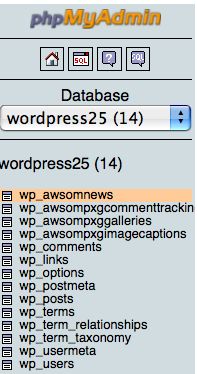
Once you’ve selected the correct database you need to go to the AWSOM News Announcement table that’s in the database. It is named awsomnews but has a header prefix that’s typically wp_, but could be a custom one that you added to the wp-config.php file. click it’s name in the list under your database name on the left and it should open a new page in the main area showing details of that table.
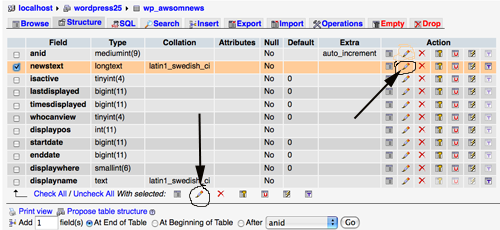
Notice that there is a column called “collation” and it lists “latin1_swedish_ci”–this is the default language type that MySQL uses unless specifically told to use a different language type (MySQL is originally a swedish product). This language type does not display Asian or other non-English lettering based languages well (and honestly has issues with regular English also). What we need to do is change this to the correct language for you.
You can do one of 2 things at this point. You can mark the checkbox next to “newstext” and click the bottom pencil icon or more simply click the pencil icon in the same row. This will open up the individual field for editing.
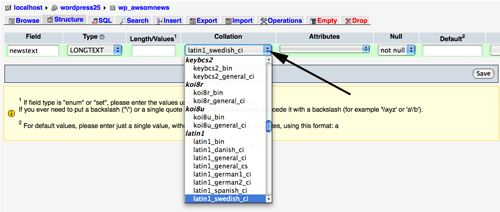
Now, the difficult part. In the collation drop down select the language type you’d like. Yes, there are a very large number of them and it’s not always easy to know which one to use. For regular English “utf8-bin” is good. You’ll need to look this up for your own language since I have no idea what’s good for any other specific language. Once you know which one you want make sure it’s selected in the drop down box. Then click the “save” button.
That’s basically it. Go and try it out.