Home » Little Tips (Page 3)
Category Archives: Little Tips
iPhone Mobile Web, Finally Usable
This post is slightly off-topic, but still a major concern for any serious blogger/webcomic/whatever WordPress admin. What do you do if you are out and about and you discover that your website has been hacked, or has malicious spam displaying, or whatever you don’t want there? If you are lucky (and rich) you might own a portable laptop that you can use to connect to your site using wifi or a cell network. But in most cases, you won’t have that. So what will you have? Maybe a phone.
Until recently I primarily used a combo of a Nokia N800 internet tablet connected by bluetooth to a Samsung Sync cellphone. This worked ok, but wasn’t very fast. It had other negatives also which would be worse for non-tech oriented people.
Then came the iPhone. It works pretty well on it’s own. However, as most people who have one have discovered, it doesn’t always work well with advanced javascript or other related programming. So it’s not easy sometimes to log into a WordPress admin area using the phone. There are some plugins out there for WordPress that make this better, but it still doesn’t replicate what you can do with other devices.
The biggest drawback of the iPhone was that it couldn’t tether to other devices to be used as a modem. It doesn’t have a dial-up networking or PAN bluetooth profile, and it didn’t have a wifi connection tool built in.
Until now. Yes, a new program out there called PDAnet for iPhone is available, and it turns your iPhone into a wifi router. So now any device that uses wifi (like a laptop or my n800) can connect to the iPhone and use it just like any other wifi hotspot. With a 3g iPhone this makes the connection pretty snappy–I’m actually using it right now with my Macbook pro to post this.
The best of all is this is free once you jailbreak your iPhone. So now I can use my iPhone for most tasks and set it to router mode when I need to use my n800 or laptop for more advanced needs. It’s a system I would strongly suggest to anyone searching for a convenient out and about system for internet use.
“Hidden” AWSOM Plugin Features: Creating default cache and gallery folders
The AWSOM Pixgallery image gallery plugin for WordPress is designed to be an easy way for users to get a gallery of their images loaded into their site with a minimum of work and time. One of it’s “hidden” features is the ability to go in and create default folders on your web server to hold both your thumbnail images and an initial gallery folder to hold your images. When Pixgallery is first activated it will attempt to create these folders in your WordPress uploads folder (this is the same folder that holds your images that get uploaded through the image upload function when writing posts or pages). In some cases this may not work, usually due to a permissions issue on your uploads folder or wp-content folder that prevents new files/folders from being written.
In these cases Pixgallery will detect that the folder wasn’t written and present you with options to create the folders later. On the settings/options page for Pixgallery you’ll see a link at the bottom of the page to create and switch to the default cache folder. If the folder was originally created properly there will be a statement there saying that the cache folder was already created.
On the Manage Pixgallery Galleries page you’ll see a button at the top of the page that says Create Default Gallery Folder. If this folder was created properly during plugin activation there will be a statement that the default gallery has already been created and will list the gallery path.
This ability is just one of the small hidden ways that Pixgallery has been designed to make your life as website admin easier.
How To Change the Language Used in a WordPress Plugin
This is a brief tutorial on how to update your AWSOM News Announcement database table to display any language type you’d like. It’s actually pretty straight forward. It’s best if you do not have any news posts saved since changing the language type might make them display incorrectly.
First thing you need to do is go to your web server and go to your MySQL administration tool. Typically this is a program called PhpMyAdmin (which I’ll be using to demonstrate–but any program will work as long as you can access the same areas I’ll be showing).
Start by selecting your WordPress database. This is the database you input into the wp-config.php file when you originally set up WordPress. You can select from your current databases by using the drop down menu on the left side:
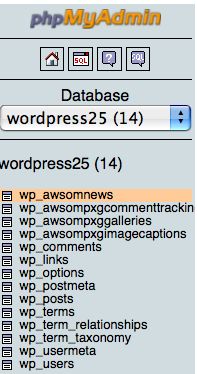
Once you’ve selected the correct database you need to go to the AWSOM News Announcement table that’s in the database. It is named awsomnews but has a header prefix that’s typically wp_, but could be a custom one that you added to the wp-config.php file. click it’s name in the list under your database name on the left and it should open a new page in the main area showing details of that table.
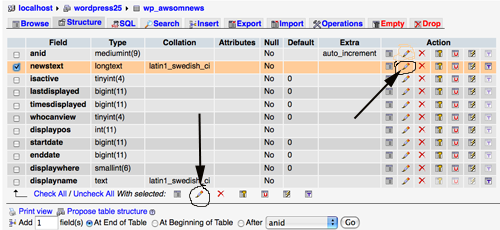
Notice that there is a column called “collation” and it lists “latin1_swedish_ci”–this is the default language type that MySQL uses unless specifically told to use a different language type (MySQL is originally a swedish product). This language type does not display Asian or other non-English lettering based languages well (and honestly has issues with regular English also). What we need to do is change this to the correct language for you.
You can do one of 2 things at this point. You can mark the checkbox next to “newstext” and click the bottom pencil icon or more simply click the pencil icon in the same row. This will open up the individual field for editing.
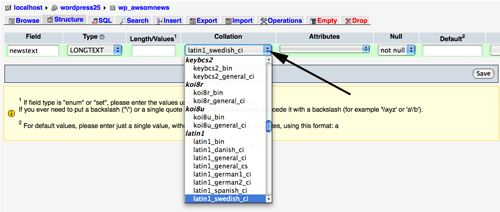
Now, the difficult part. In the collation drop down select the language type you’d like. Yes, there are a very large number of them and it’s not always easy to know which one to use. For regular English “utf8-bin” is good. You’ll need to look this up for your own language since I have no idea what’s good for any other specific language. Once you know which one you want make sure it’s selected in the drop down box. Then click the “save” button.
That’s basically it. Go and try it out.
“Hidden” AWSOM Plugin features: Display Ads to Non-Registered Users
As part of my “Hidden” features of AWSOM Plugins I want to point out a usage for the AWSOM News Announcement plugin for WordPress that may be of use to Site Admins. Most people who use the AWSOM News Announcement plugin typically use it for it’s most basic function: adding a News block above your posts on the Index page of your site. This is one great usage of this plugin and the most obvious one. But you can have multiple News Posts active at the same time, so I’d like to point out another easy usage that adds power and capabilities to your site.
One of the things that you can select when adding a new news announcement is what viewer level is able to see that particular News Post, and each News Post can have different viewer levels. By default it’s set to “everyone”, but you are able to restrict the viewer to any of the regular WordPress registered user levels. So, you can make a News Post only visible to Subscribers or Administrators, or any level in between. This makes the News Post a handy way of informing other members of your site about important information that only applies to them.
Of course an obvious usage is to restrict certain things so that only registered visitors can see/use things. An example is an audio/video player for extra site content. With the “run php” setting in News Announcement turned on you can embed any player that requires javascript or php code to function. Now you have created an incentive for visitors to sign up to your site.
Conversely you can do things so that ONLY non-subscribers see certain News Posts. By selecting this as the viewer level for a post, it only gets shown to general visitors–>which makes it an excellent way of displaying ads to non-registered users while making it a “benefit” for people to sign up to your blog so that they aren’t presented with ads. Since any content can be added to a News Post and can run, almost any ad company code or system can be set to display in a News Post.
So not only do you now have a way to give your readers information, but you can present ads and reserve enhanced content and generate more reasons for visitors to interact with your blog.
“Hidden” AWSOM Plugin features: Custom Sub Gallery Images
I’ve come to realize that as a piece of software grows so does it’s complexity. As a result many features can easily be overlooked, especially if they are designed to be used in only specific circumstances. So I’ll post a spotlight on certain features or capabilities of AWSOM WordPress plugins from time to time that I think people might find useful, but may have overlooked.
The first such feature is the ability in AWSOM Pixgallery to select and display a custom image for a sub gallery in the thumbnail view. Normally Pixgallery uses your sort option setting to determine what image it uses to represent sub galleries in the thumbnail view–so it will typically show either the last added image or alphabetical image as the folder image. This means that in many cases the image displayed by the folder will change over time if you add new images to the folder. This can be good to alert visitors that new images have been added to a folder. However, in some cases you may not want this to happen and would prefer to have a set image for a particular sub gallery.
With Pixgallery it’s very easy to accomplish this. All you need to do is place an image file within any sub gallery folder and call it “pxggalleryimage” with any standard image format type (gif, jpg, png–so pxggalleryimage.gif is an example), and Pixgallery will use that image for the folder. This image will NOT appear as a member of the sub gallery, so you can use an image that you don’t even want to have actually appear in the gallery itself if you want. Every sub gallery can have it’s own individual custom image file, and you can even mix and match with some being automatic and some being preset. It’s yet another way that Pixgallery speeds up your workflow but allows you flexibility when you need it.